
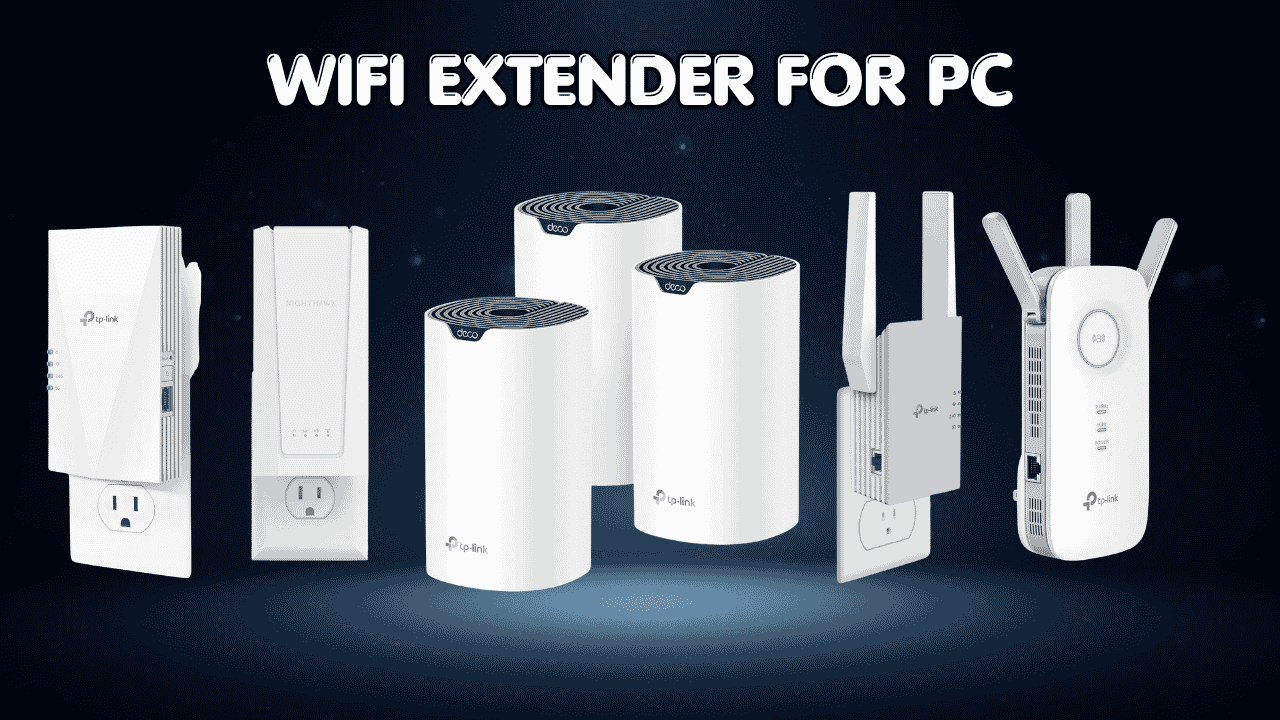

A weak WiFi signal can lead to slow downloads, lag during online gaming, unstable video calls, and frustrating connection drops on your PC. If your computer sits far from the router, or has a couple of walls in the way, upgrading your router alone may not fix it. The best wifi extender for pc setups boosts signal strength, widens coverage, and gives you a more stable connection, so you get better performance without dragging your desk across the house.
Whether you’re gaming, streaming, working remotely, or pulling down big files, a good extender can noticeably improve your wireless experience. And because many modern extenders include an Ethernet port, your desktop or gaming rig can plug in directly for a more reliable wired connection while everything else on Wi-Fi still benefits from the extended range.
Compatibility: A wi-fi range extender for pc works with virtually any router, ISP, or Windows-based computer. It grabs your existing signal and rebroadcasts it into the weak spots. Models with an Ethernet port connect straight to a desktop, console, or workstation, while laptops and other wireless gear just connect over Wi-Fi like normal. Most current extenders support WiFi-5, WiFi-6, or WiFi-7 while staying backward compatible, so you can upgrade your PC’s connection without replacing your router.
Quick Preview of Our Top 5:
- TP-Link Deco S4 Mesh AC1900 WiFi System
- TP-Link RE500X AX1500 WiFi 6 Range Extender
- TP-Link RE515X AX1500 WiFi 6 Range Extender
- NETGEAR WiFi 7 Range Extender (EXS25)
- TP-Link RE550 AC1900 WiFi Range Extender
How to Choose the Right Wi-Fi Extender for PC
Start With the Core Problem
A PC parked in a back bedroom or basement office is often the device that suffers most from a weak signal, since it’s usually farthest from the router and stuck behind the most walls. An extender’s whole job is to grab that signal before it fades out and rebroadcast it strong enough for your PC to actually use, instead of limping along on a few bars.
Common Issues Buyers Run Into
- Slow downloads, gaming lag, or a signal that just won’t hold steady
- Uncertainty about whether an extender will work with their specific router or ISP
- Buying a model that’s too small (or too much) for their actual space
- Paying extra for tri-band radios or 6 GHz bands they’ll never use on a basic PC setup
Why Modern Options Are Better
Newer extenders, especially WiFi-6 and WiFi-7 models, handle more simultaneous devices and hold a steadier connection than older WiFi-5 hardware. Setup is also far simpler now, usually through an app, and many models support mesh-style features like One Mesh or Easy Mesh so your PC doesn’t have to manually switch networks as signal strength shifts.
Who This Guide Is For
This guide is built for beginners who just want a fix that works, power users who need consistent speeds, gamers and remote workers who can’t afford a dropped connection mid-call, and anyone in a larger home or apartment where one router can’t reach every room.
What This Guide Helps You Decide
By the time you’re done reading, you’ll know which extender fits your home size, your PC’s needs, and your budget — so you can stop guessing and just get connected.
Top 5 WiFi Extenders for PC
Disclosure: This post contains affiliate links. As an Amazon Associate I earn from qualifying purchases. If you purchase through our links, we may earn a small commission at no extra cost to you.
These five were chosen based on practical things like coverage area, device capacity, Ethernet port availability (a big plus for desktop PCs), and how well each one plays with common routers.
1. TP-Link Deco S4 Mesh AC1900 Wi-Fi System – Best Overall Choice
Overview: A 3-pack mesh system that replaces your router and extender entirely | Covers up to 5,500 sq. ft. and connects 100+ devices | Best suited for larger homes or multi-room offices with a PC tucked in a far corner | Works with all major ISPs and includes Alexa voice control
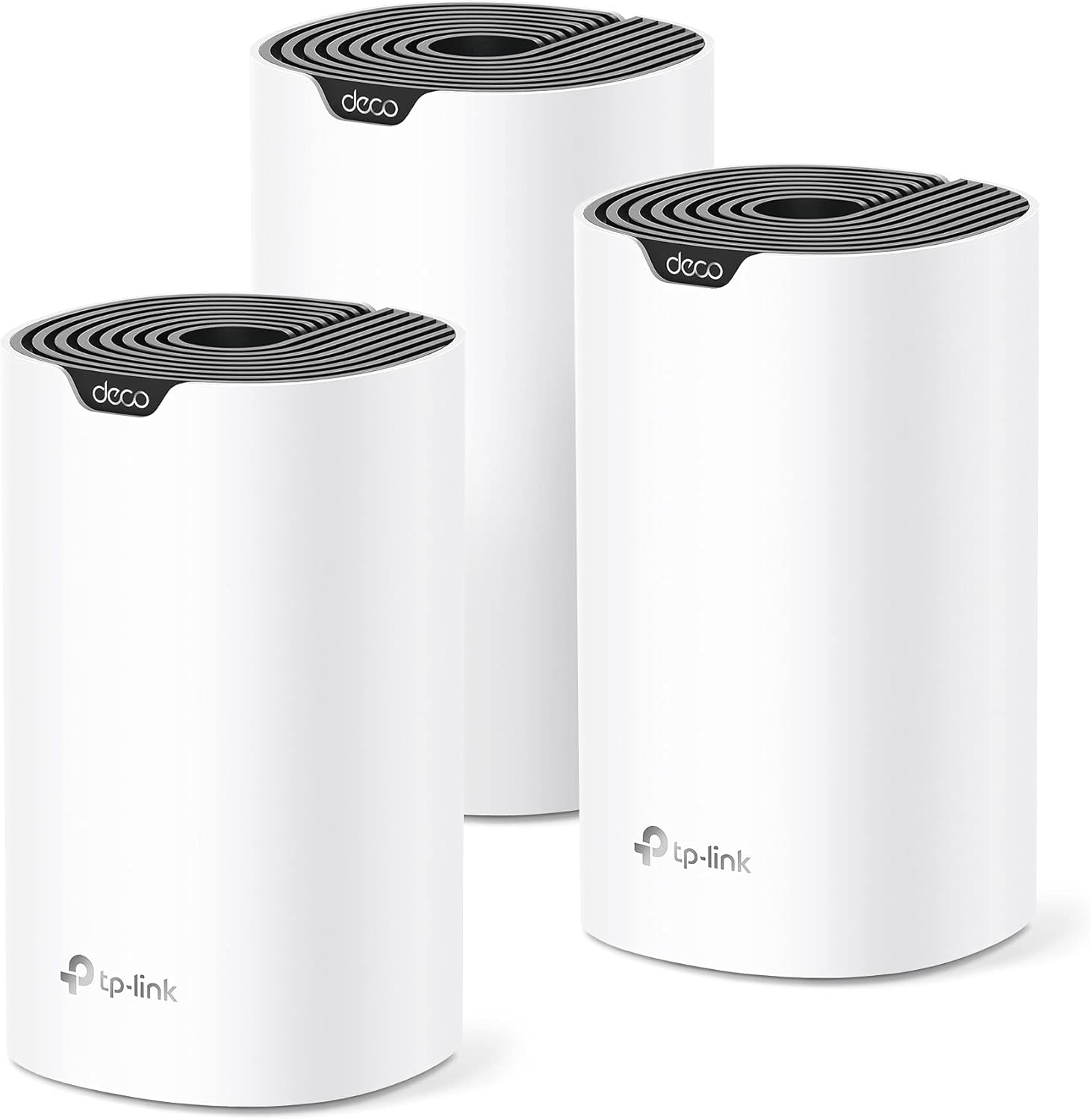
Key Benefits: Each unit has 2 Gigabit Ethernet ports for wired PC or console connections | Single network name with seamless roaming as you move between rooms | Easy setup through the Deco app | Built-in parental controls if you’re sharing the network with family
Pros: Massive coverage compared to a single extender | Three units mean no more dead zones anywhere in the house | Acts as a full router replacement, not just a booster | Alexa compatibility for voice commands
Cons: It uses WPA2 rather than WPA3 encryption, and it runs on WiFi 5 (AC1900) instead of WiFi 6 or 7, so it’s not the most future-proof option for next-gen devices
Best For: Larger homes or offices that need whole-property coverage and want to replace their router and extender with one simple system
2. TP-Link RE500X AX1500 WiFi 6 Range Extender – Best for Everyday PC Use
Overview: A compact, wall-plug WiFi-6 extender built for everyday households | Covers up to 1,500 sq. ft. and supports 25 devices | Great fit for a single home office or PC setup that’s just out of router range | One Mesh-compatible with supported TP-Link routers, and works with any router or access point in general

Key Benefits: Combined dual-band bandwidth of 1.5 Gbps (1201 Mbps on 5 GHz, 300 Mbps on 2.4 GHz) | Gigabit Ethernet port for a direct wired link to your PC | Intelligent signal indicator to help you find the best spot | Simple setup through the TP-Link Tether app
Pros: Easy to set up in minutes | Solid WiFi 6 efficiency for the price | Gigabit port adds real wired speed for desktop PCs | Works with virtually any router brand
Cons: It only supports WPA2 security, not WPA3, so security-conscious buyers should note that before purchasing
Best For: Single-room or single-office fixes where a desktop PC just needs a stronger, more dependable signal
3. TP-Link RE515X AX1500 WiFi 6 Range Extender – Best for Multi-Device Households
Overview: A dual-band WiFi 6 extender with a bit more reach than the RE500X | Covers up to 1,800 sq. ft. and handles up to 64 devices | Good fit for households running several connected devices alongside the main PC | EasyMesh-compatible for whole-home mesh expansion
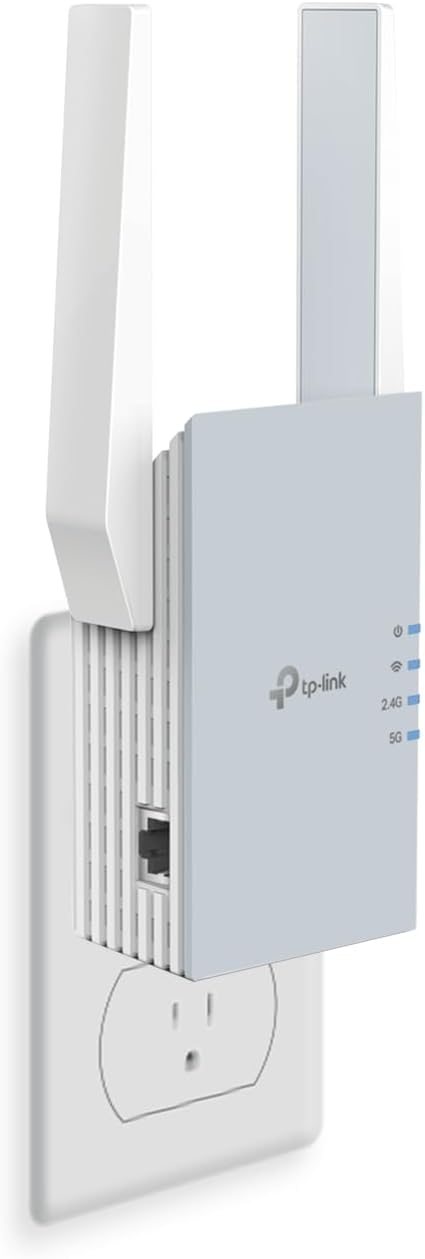
Key Benefits: Same 1201 Mbps (5 GHz) / 300 Mbps (2.4 GHz) bandwidth split as the RE500X, but with wider coverage | Two high-gain directional antennas with beamforming for stronger signal reach | Gigabit Ethernet port for wired PC connections | Smart Adaptive Roaming keeps devices on the strongest signal automatically
Pros: Higher device capacity than the RE500X | Beamforming antennas help push signal further | EasyMesh support for future expansion | Straightforward app-based setup
Cons: Like its sibling RE500X, it tops out at WiFi 6 dual-band speeds rather than tri-band or WiFi 7
Best For: Homes with several connected devices that need a steady, wider-reaching signal for a PC and everything else nearby
4. NETGEAR WiFi 7 Range Extender (EXS25) – Best Budget WiFi 7 Option
Overview: A compact dual-band WiFi 7 extender for smaller homes and apartments | Adds coverage for up to 1,500 sq. ft. and 45 devices | Solid pick for renters or smaller PC setups who still want newer WiFi 7 tech | Includes WPA3 security and Smart Roaming for steadier handoffs

Key Benefits: Newer WiFi 7 chipset at a friendlier price than premium tri-band models | Up to 5 Gbps of dual-band speed | Compact wall-plug design | WPA3 security, a step up from the WPA2-only extenders above
Pros: Most affordable way into WiFi 7 tech on this list | Stronger security standard (WPA3) | Easy plug-and-play setup | Smart Roaming for automatic signal switching
Cons: Coverage and device capacity are smaller than the mesh and AC1900 options here, so it’s a better match for apartments than larger houses
Best For: Renters or smaller households who want modern WiFi 7 security and efficiency without the bigger price tag
5. TP-Link RE550 AC1900 WiFi Range Extender – Best Budget Pick for Larger Coverage
Overview: A dual-band AC1900 extender built for bigger coverage on a budget | Covers up to 2,800 sq. ft. and supports 32 devices | A solid fit for larger homes that don’t need WiFi 6 or 7 speeds, just more reach | EasyMesh-compatible and works with all WiFi-enabled routers and access points

Key Benefits: 1 Gbps Ethernet port for a direct, reliable wired PC connection | Up to 1900 Mbps combined bandwidth across both bands | Built-in Access Point mode so a wired connection can become a Wi-Fi signal | Intelligent signal indicator for finding the optimal placement
Pros: Big coverage footprint for the price | Gigabit Ethernet port adds real wired flexibility | Easy Mesh support for future network expansion | Works with essentially any router
Cons: It runs on WiFi 5 (AC1900) rather than WiFi 6 or 7, so it won’t match the efficiency of newer standards under heavy device loads
Best For: Larger homes on a budget that need to cover more square footage without paying for the newest WiFi standard
Quick Comparison
| Rank & Model | WiFi Standard & Max Speed | Coverage & Ethernet Port | Best For |
| 1. TP-Link Deco S4 (3-pack) | WiFi 5, AC1900 | 5,500 sq.ft / 2 Gigabit ports per unit | Whole-home coverage, router replacement |
| 2. TP-Link RE500X | WiFi 6, AX1500 (1.5 Gbps) | 1,500 sq.ft / 1 Gigabit port | Single-room PC or home office fix |
| 3. TP-Link RE515X | WiFi 6, AX1500 (1.5 Gbps) | 1,800 sq.ft / 1 Gigabit port | Multi-device households |
| 4. NETGEAR EXS25 | WiFi 7, up to 5 Gbps | 1,500 sq.ft / Varies by model | Budget WiFi 7 in smaller spaces |
| 5. TP-Link RE550 | WiFi 5, AC1900 | 2,800 sq.ft / 1 Gigabit port | Larger homes on a budget |
This guide will help you choose the right wi-fi extender for pc setups based on your home size, usage needs, and expectations.
Already thinking about expanding coverage beyond a single router? Read our guide on the best long-distance WiFi extenders to see how to pair your router with an extender for full property coverage.
What to Look for When Buying a WiFi Extender for PC
Suitability for Your Setup and Daily Usage
- Confirm it’s compatible with your router, ISP, or mesh system
- Match the coverage rating to your actual workspace size, not just the box’s biggest number
- Make sure it supports the wireless standard your PC and other devices already use
Feature Simplicity and Transparency
- Look for plain specs instead of vague marketing terms
- Skip extras you’ll never use, since they usually mean extra cost for nothing
- Favor models with a clear, app-based setup process
Performance and Stability
- An Ethernet port matters most if your PC sits close enough to plug in directly
- Look for consistent real-world performance, not just a flashy “max speed” number
- Smart Roaming or mesh compatibility helps your PC avoid a weak handoff between router and extender
Brand Reliability and Support
- Stick with brands that ship regular firmware updates
- Check warranty terms and support access before buying
Long-Term Value for Everyday Use
- A WiFi 6 or WiFi 7 extender will likely age better as more PCs and accessories adopt newer standards
- Mesh-compatible extenders (OneMesh, EasyMesh) make it easier to expand your setup later
- Look for an easy-to-manage app or web interface so you’re not stuck troubleshooting blind
How These WiFi Extenders Were Selected
These picks were chosen by comparing manufacturer specifications and real-world product listings, with a focus on practical day-to-day usability rather than marketing claims. The factors considered:
- Daily performance and practical usability for PC use
- Suitability for different home and office setups
- Clarity of the listed specs and features
- Ease of setup and overall user experience
- Reliability and consistency over regular, everyday use
- Brand reputation and ongoing firmware support
How to Use Your WiFi Extender for PC Effectively
Setting things up right makes a bigger difference than people expect, so a few minutes of careful placement can save you a lot of frustration later.
Proper Initial Setup
- Place the extender roughly halfway between your router and your PC
- Follow the app or WPS setup steps in order before tweaking anything else
- Update the firmware right after the initial setup
Optimal Placement and Positioning
- Keep the extender away from thick walls, metal furniture, and large appliances
- Position it based on your actual home layout, not just “somewhere central”
- Avoid placing it directly behind a monitor, desk, or other signal-blocking gear
Common Setup Mistakes to Avoid
- Placing the extender too close to the router, so it just duplicates the signal instead of extending it
- Ignoring compatibility requirements before buying
- Skipping configuration steps in the setup app
- Overloading one extender with far more devices than it’s rated for
Performance Optimization Tips
- Use the 5 GHz band for your PC when gaming or streaming, since it’s faster at shorter range
- Connect your desktop by Ethernet whenever the port is within reach
- Restart the extender periodically to clear out any buildup
Signs It’s Working Properly
- A stable, consistent connection with no random drop-offs
- Smooth streaming, gaming, or browsing on your PC without stutter
- Noticeably stronger signal in the room that used to struggle the most
How to Pick the Right WiFi Extender for PC
- Match your plan: If you’ve got gigabit internet or faster, prioritize a WiFi 6 or WiFi 7 extender so it doesn’t become the bottleneck
- Third-party vs. official brand extenders: Sticking with your router’s brand, or one built for OneMesh/EasyMesh, usually means a smoother, faster setup
- Placement: Put it in the room between your router and your PC, not tucked right against either one
- Must-have features: A wired Ethernet port and mesh compatibility are worth prioritizing if your PC stays in one spot
- Avoid: Extenders that only advertise speed without giving real coverage or device numbers to back it up
Frequently Asked Questions
Does a WiFi extender actually improve PC speed, or just coverage? An extender is designed to improve coverage and signal reliability, not increase your overall internet speed. If your base internet plan is slow, an extender won’t fix that — but it will help your PC get a stronger, steadier version of the speed you already have.
Can I connect my desktop PC directly with an Ethernet cable? Yes, if the extender has an Ethernet port. Most of the models above include one, which gives your desktop a wired connection while everything else on the network still benefits from the extended WiFi.
Will any extender work with my current router? Most extenders are designed to work with routers from any brand. That said, mesh-style features like OneMesh or EasyMesh work best when paired with a compatible router from the same brand, so check that before assuming you’ll get the full feature set.
Is a mesh system like the Deco S4 better than a single extender? A mesh system covers more total square footage and usually offers a more seamless connection as you move around, but a single extender is often simpler and cheaper if you only need to fix one weak spot near your PC.
Do I need WiFi 6 or WiFi 7 if my PC only has an older WiFi adapter? Not necessarily. Newer extenders are backward compatible, so they’ll still work with older PCs. The bigger benefit of WiFi 6 or 7 extenders is handling more devices at once without slowing down, which still helps even if your PC’s adapter is older.
Alternatives and Honorable Mentions
If none of these quite fit, it’s worth looking at other models in the same product lines, since TP-Link and NETGEAR both offer similar extenders with slightly different coverage and device numbers. Just compare the specs against your own home size before deciding.
Final Recommendation
This guide is best for readers comparing multiple options, anyone unsure about compatibility or setup, buyers who want reliable performance without paying for unnecessary features, and anyone after a balanced, long-term fix for their PC’s WiFi.
For most households, the TP-Link Deco S4 Mesh AC1900 System stands out as the strongest overall pick, mainly because it replaces your router and extender with one seamless, whole-home network instead of patching a single weak spot. It’s an especially good fit if your PC sits in a far corner of a larger home or office.
Whatever you choose, match the extender to your actual home size and your PC’s connection needs, rather than chasing the biggest speed number on the box. That’s the real difference between a setup that just looks good on paper and one that actually keeps your PC connected.
Ready to stop fighting dropped connections and laggy downloads? Pick the option above that fits your space, plug it in, and get your PC back up to full speed.
Want lower ping and faster speeds? Read our best WiFi extender for gaming guide.